|
Showing posts with label Google. Show all posts
Showing posts with label Google. Show all posts
Creating new blog in google Blogger - Part 2
It is very much simple. Just follow the images below and you can able to create excellent page than this design. Go ahead.
        Now you also ready to share your view, Lets get started... Creating new blog in google Blogger - Part 1
Do you want to say something,?
Do you need your own page that can be accessible any where easily in free of cost? Do you need to design your page by you? Then solution is here.... Just click here for creating your own web page.. or use this url:http://www.blogger.com/ Like this. Not exactly. You can create excellent design what ever you like.  Which is google blog from google. There are millions of google bolgs available and daily more bloggers are coming like you.. Ok go ahead and create your own blog To crate your own blog go here Still do you need assistance. Then use this blog discussion. Thanks for viewing. Comment me... More ways to open composer in a new window
shift + 'c' or shift + click on 'Compose Mail'
shift + 'r' or shift + 'reply' shift + 'a' or shift + 'reply all' shift + 'f' or shift + 'forward' Shift key is needed for keyboard shortcuts to work (caps lock is ignored). If you're replying to a mail and want to change to reply all from your keyboard, hit Esc then 'a'. This is a keyboard shortcut. Saves a mouse click. Because Esc moves the focus out of the text box when you are composing a reply, it allows you to then type the normal keyboard shortcuts 'r' for reply-to-sender, 'a' for reply-to-all, or 'f' forward to change the recipients of your message. So if you're replying to a message, the combination Esc then 'a' will change it to "reply to all" Retrieve Documents List from Google Docs using GData Java Client LibraryYou can connect and retrieve data from any of the Google services by using Google API. Here we  are going to use one such application for retrieving list of documents from Google Docs using the java client library provides by Google. You can download that open source stuffs latest version from gdata-java-client. The steps for installing the library and its dependencies to your local system can be found in "Getting started with Google Data java Client Library". are going to use one such application for retrieving list of documents from Google Docs using the java client library provides by Google. You can download that open source stuffs latest version from gdata-java-client. The steps for installing the library and its dependencies to your local system can be found in "Getting started with Google Data java Client Library". If you are using eclipse IDE for working with Java, then the steps of installation are more easy and that can be found in "Coding in the Shade". After successfully installing those libraries and contents. Now we can start developing our first and simple application to retrieve the document list from Google Docs. Now Create a java project and add the necessary External jars to project library. As we are going to develop a application to communicate with Google Docs add the "gdata-docs-3.0.jar" and "gdata-docs-meta-3.0.jar" in specific for this project. Download full Code here In the downloaded code you can find the import statements, which imports three important class to get feeds from Google Docs. First instance for the DocsSrevice class is created by passing the applications information as parameters to the constructor. And the users credentials such as username with domain name and corresponding password are set using the setUserCredentials() method. Then the getFeed() method of DocsService class is invoked, the url from which the feeds are to be obtained are passed as the argument. The feeds obtained by getFeed() is assigned to instance of DocumentListFeed. Each entry in the feed are extracted using the DocumentListEntry class. Then each documents information be obtained as follows: This is a initiation, you can process a lot more using those API. To get more information about working with Google Docs you can check the following links:
Google Account Authentication using ActionScript in Adobe AIR
Google Supports developers by providing lots of API for each and every service they provide. By using those APIs, developers can communicate with Google and get feeds from any of thier services by developing a web based application or a installable client application. Before starting to get feeds and post feeds to Google accounts from the application, the developers must get the user's Google account authenticated. To do that user credentials such as email id with password must be send to Google and if the credentials are correct then Google will send back a authorizing token using which developers can start getting feeds and process them.
 To authenticate a user, use Google account API, that allow third party application to get limited access to a user's Google accounts for certain types of activities. The Google Authorization Service manages authentication, authorization, and access control to user accounts, subject to approval from the account holder. Google offers several account authorization APIs to accomodate different types of access. Google provides three types of access authorization methods. They are
Download the Full Code First send a http request to Google using HTTPService class with the user name and password by POST. First all the neccessary information for making a request are set in the HTTPService method. Dont forget to give a valid email and password in the class, otherwise you cannot get authorization. Then the request is send only in the scripting part in the init() function with will be called when application load completes by setting the tag "applicationComplete="init()"". The handlers are already set in the mx tag to handle the result event and failure event. A success response contains the authorization token, labeled "Auth", in the body of the response. Your application must reference this token in each request to the Google service for this user. Additional cookies, labeled "SID" and "LSID", are not currently active and should not be used. A failure response contains an error code and a URL to an error page that can be displayed to the user. Check this links to get still more information from Google: Installing gtalk in ubuntu - (Google talk)
You can use gtalk in ubuntu
Just do the following 1. check for gtk2.0 and qt4 $ sudo apt-get install libgtk2.0-dev $ sudo apt-get install libqt4-dev 2. Remove 'pulse audio sound server' Open synaptic package manager and remove pulse audio $ tar -zxvf gtalx.tar.gz5. Get into the directory.... $ cd gtalx and then... $ sudo chmod u+x make $ ./make $ sudo ./make install 6. Enjoy..... Please comment about your installation(whether it was a success or not....) Take gtalx from Applications > Internet > gtalx Enter your gmail login information..and click connect... 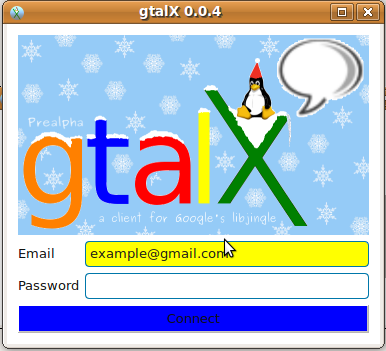 After successful login your online gmail buddies will be listed... Click the "Contact" button to "chat or call" that person..  Upon clicking the contact button you will be shown a screen like this.... If you need to chat..type your message and click "send"... If you want to talk..click 'call".... Enjoy....It worked successfully for me... Any problem please do comment me
Subscribe to:
Posts (Atom)
Follow Us on Twitter

|


